LivebookPRO Guide
Complete reference for all features. Use the menu on the left or scroll to explore everything.
Overview
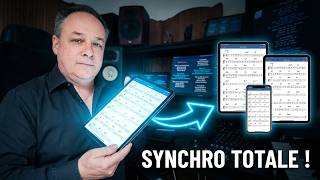
LivebookPRO is a sheet music and lyrics management app for live musicians. A Master drives the session from a tablet or PC; the Slaves (orchestra musicians) follow in real time on their own devices, without touching anything.
The app runs in the browser with no mandatory installation (it can also be installed as a native app via PWA). It is optimised for tablets, smartphones and desktops, in portrait and landscape mode.
🎹 Master MASTER
Loads songs, manages the database, controls slaves. Access to all panels.
🎻 Slave SLAVE
Joins via link or QR code. Receives songs in real time. Simplified interface.
Login & startup
The startup screen (splash screen) is the first thing you see when opening the app.
🔑 PIN entry BASIC
Enter your 4-digit PIN to access your room. After 3 failed attempts, access is blocked for 15 minutes.
▶ Start button BASIC
Launches the session, hides the splash screen and activates fullscreen automatically.
📡 Slave sync SLAVE
Automatic phases: detection → download → loading → ready. No action required.
🖥 Auto fullscreen BASIC
Fullscreen activates at startup. On iOS, spread two fingers (pinch out) if fullscreen does not start automatically.
📶 Offline access ADVANCED
If the server is unreachable, the locally stored PIN still allows you to start and access the local database.
Navigation — The Rail
The rail is the side navigation bar that gives access to all panels. It opens and closes only via the 🛠️ Tools button in the toolbar — it never opens automatically when loading a song.
🛠️ Tools button BASIC
The only button that opens and closes the rail. The rail is linked to the tabs: if the rail is open, a panel is visible; if the rail is closed, everything is hidden.
📁 File BASIC
Save and manage the database.
✏️ Edit BASIC
Create and edit songs (title, lyrics, format, tempo…).
⚙️ Preferences BASIC
Display settings (font size, theme, visual metronome…).
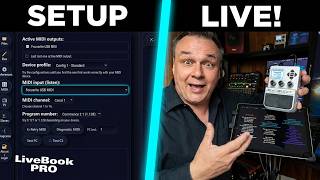
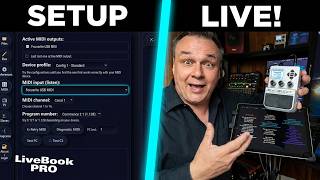
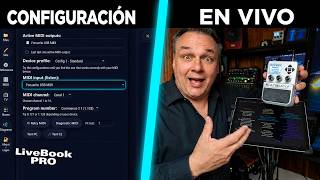
🎛️ MIDI ADVANCED
Configure MIDI devices and programs.
📺 TV MASTER
Broadcast mode to an external screen (TV, projector).
👥 Slaves MASTER
Manage musician stands (links, QR codes, email invitations). Visible in Master mode only.
🎼 Diagrams BASIC
Visual library of chord diagrams (guitar, bass…).
🔐 About BASIC
Session info, interface language change, bug report.
Main toolbar
The toolbar is the central area of the app. It displays the current song and concentrates all session controls.
📄 Title & artist BASIC
Displays the song name, artist and active transposition.
🎵 Render area (score) BASIC
Score display area: lyrics, chords, or PDF depending on the selected format. Automatically adapts to screen size.
🛠️ Tools button BASIC
Opens and closes the navigation rail (panels). This is the only control allowed to open/close tabs.
📂 Load button BASIC
Opens the song list from the database to select one. Also contains search filters and the Delete button.
▶⏸ Start / Stop BASIC
Starts or stops the internal metronome. Long press: freezes the current pattern until the next song.
➕➖ Live tempo BASIC
Increases or decreases the BPM in real time. The change is saved in the database if autosave is enabled.
+1 / −1 Live transposition BASIC
Transposes by a semitone in real time. Saved in the database only if autosave is enabled.
🔄 Refresh ADVANCED
Forces a layout recalculation (useful after a screen rotation or window resize).
⛶ Fullscreen BASIC
Toggles fullscreen mode. On iOS, use the pinch (spread two fingers) instead.
↗ Detach score ADVANCED
Opens the render area in a separate popup window (useful for multi-screen or second monitor).
Load a song
The 📂 Load button in the toolbar opens the complete song list from the database. It is the main interface for browsing your repertoire.
📋 Song list BASIC
Displays all songs in the database. Click a title to load it immediately.
🔍 Quick search BASIC
Filter the list by title or artist in real time.
🌍 Language filter BASIC
Filter songs by lyrics language (FR, EN, ES…).
🗑 Delete a song ADVANCED
Permanently deletes the song from the local database. Accessible from the Load button options.
File panel
Manage your music database (.spb files): save, load from server, and emergency reset.
☁️ Load from server BASIC
Downloads the latest published database from the room server.
💾 Save locally (automatic) BASIC
The database and preferences are saved automatically in the browser. No action required.
☁️ Save to server MASTER
Sends the local database to the server so slaves can download it.
🛑 Kill — Emergency reset DANGER
Erases all local browser data: loaded database, preferences, tokens and PIN. Server databases are not deleted. Use only in case of a serious crash. A room reload is required afterwards.
Edit panel
Create and edit your songs. Each song contains a title, artist, lyrics/chords, format, language and musical options.
Main fields
📝 Title BASIC
Song name. An alert is shown if the title already exists in the database.
🎤 Artist BASIC
Name of the artist or band.
🎵 Lyrics / Chords BASIC
Song content. Verses are separated by blank lines. Chords are embedded in brackets within the text: [Am], [G7], [C#m]…
📄 Display format BASIC
Chooses how the song is displayed: FR (Livebook text mode), ENG (English mode), PDF (if a PDF is attached), OFF (chords hidden). Each musician can choose their own format independently. XML mode is planned for a future update.
🌍 Lyrics language BASIC
Language of the song content (FR, EN, ES…). Used for sorting and Load button filters. Not to be confused with the display format.
🎛 Style / Pattern / Tempo BASIC
Group of musical settings framed in the UI by the label Pattern (MIDI Pattern): Style (bank), Pattern (associated MIDI pattern/combi) and Tempo (BPM).
Actions
➕ New song BASIC
Creates an empty song with a unique key.
💾 Save BASIC
Saves the song locally. An auto-save option can be enabled.
◀ ▶ Previous / Next BASIC
Navigates through the song list without going back to the Load button.
📦 Export song BASIC
Exports the song in all its available formats (lyrics + PDF if present) as a single shareable bundle file.
📥 Import song BASIC
Imports a song from a bundle file (lyrics + PDF if present) received from another user.
Lyrics formatting
Tags colour lines according to their stage role. Tags are applied at the start of the line:
<n> — normal text<r> — red<b> — blue (flashes on TV screen — ideal for choruses)<v> — green<o> — orange<p> — purple<K> — pink
Preferences
Adapt the display to your device and preferences. Each setting is saved automatically.
🔄 Autosize BASIC
Automatic size adjustment to content and screen. Recommended: enabled. Disable only for precise manual control.
🔤 Font size (system) BASIC
Size of interface menus and labels.
🔤 Font size (title) BASIC
Size of the song title displayed in the toolbar.
🔤 Font size (lyrics) ADVANCED
Size of the lyrics/chords text. Active only when Autosize is disabled.
↕ Line height BASIC
Vertical spacing between lines (1.0 to 1.6).
🅱 Text weight ADVANCED
Makes the text thinner or bolder (300 to 900).
📐 Number of lines ADVANCED
Limits the number of simultaneously visible lines. Active only when Autosize is disabled.
🎸 Chord position BASIC
Chords above or below the lyrics.
💓 Tempo pulse (title) BASIC
Visual flash on the title in time with the tempo.
🖼 Score frame on beat BASIC
Frames the render area (score) in time with the tempo to reinforce the visual pulse.
💥 Pulse intensity ADVANCED
Adjusts the strength of the visual metronome flash.
📏 Tablet dimensions (manual) ADVANCED
Enter the exact screen dimensions if Autosize is not suitable. Extreme cases only — automatic mode is preferred.
📤 Export preferences ADVANCED
Saves all your preferences in a JSON file to transfer them to another device.
📥 Import preferences ADVANCED
Restores a previously exported preference profile.
Musical features
🎼 Transposition (editor) BASIC
Transposes the song's chords in semitones from the Edit panel. Saved in the database.
+1 / −1 Live transposition (toolbar) BASIC
Transposes on the fly from the toolbar without opening the editor. Ideal for adapting to a singer in real time. Saved in the database if autosave is enabled.
♭ / ♯ Flats & sharps BASIC
Chooses whether transposed chords are displayed as flats (Bb, Eb…) or sharps (A#, D#…).
🥁 Visual metronome BASIC
Flash on the title and/or score frame in time with the song's tempo (configurable in Preferences).
⏸ Pattern freeze (Start/Stop long press) ADVANCED
Holding the Start/Stop button freezes the current MIDI pattern until the next song is loaded.
Setlists & Playlist
Organise the running order of your songs for a concert or rehearsal.
➕ Create a playlist BASIC
Creates a named playlist, persistent per room and database.
➕ Add a song BASIC
Add a song to the playlist from the list or search.
▶ Load from playlist BASIC
Plays the song directly from the playlist.
✖ Remove a song BASIC
Removes a song from the playlist (not from the database).
↕ Reorder (drag and drop) BASIC
Drag songs to change their running order.
↔ Resizable columns BASIC
Drag the separators to adjust column widths.
💾 Auto-save BASIC
The playlist is automatically saved locally.
Master mode
The master is the digital conductor. They load songs, manage the database and control all slaves from a single device.
👥 Slaves panel MASTER
Lists all configured stands with their real-time connection status.
🏷 Stand name MASTER
Give each stand a name (e.g. "Violin 1", "Keys").
📧 Musician email MASTER
Associate the musician's email to send them their invitation directly.
✉️ Send invitation MASTER
Sends an email with the stand's link and PIN. A warning appears if no database has been saved on the server yet.
📋 Copy link MASTER
Copies the stand link to the clipboard for manual sharing.
📱 Stand QR code MASTER
Generates a QR code that the musician scans to join their stand instantly.
🔗 Shortcut MASTER
Downloads a .url / .webloc file to create a desktop shortcut on the musician's device.
🟢 Connection status MASTER
Real-time indicator: green = connected, grey = offline.
📱 Musician's device MASTER
Automatically displays the name of each musician's device (iPad, Android, etc.).
🔓 Release a stand MASTER
Resets a stand to assign it to another musician.
Slave mode
The slave musician has nothing to do: they open their link, enter their PIN, and the app automatically syncs with the master.
🔗 Join via link SLAVE
Open the link received by email (or scanned as a QR code) in your browser.
🔑 Slave PIN SLAVE
Enter the PIN received by email to authenticate on your stand.
📡 Auto sync SLAVE
The database and current song download and update automatically without intervention.
📄 Format choice SLAVE
Each slave chooses their own display format: Livebook view (text + chords) or PDF score if the master has attached a PDF to the song.
🔒 Editing locked SLAVE
By default, slaves cannot modify the database (read-only).
PDF & Scores
Attach a PDF score to any song. It will be stored locally and available to slaves.
📎 Drop a PDF BASIC
Drag and drop a PDF file into the dedicated area of the Edit panel to attach it to the song.
🗑 Remove PDF BASIC
Removes the PDF attached to the song.
↔ Switch Livebook / PDF BASIC
Each musician (master or slave) can choose to display the PDF score instead of Livebook text mode, if a PDF is available for this song.
💾 IDB storage ADVANCED
PDFs are stored in IndexedDB (large quota) to avoid filling up localStorage.
MIDI
Connect and send program changes to your keyboard or drum machine.
🎛 Device selection ADVANCED
Choose which MIDI device (keyboard, drum machine).
📋 MIDI program names ADVANCED
Name your MIDI programs (e.g. "Piano 1", "Violin", "Organ") to find them in the selector.
🔄 Reset names ADVANCED
Resets all custom MIDI program names.
TV mode
Broadcast lyrics to an external screen (TV, projector) for the audience or backing vocalists.
📺 Open TV view MASTER
Launches a dedicated fullscreen page, optimised for large screens.
🔑 TV PIN MASTER
Set a PIN to secure access to the TV screen.
✉️ Invite by email MASTER
Send a link to the TV view to the screen operator.
📱 Audience QR code BASIC
QR code allowing audience members to send messages that appear live on the TV banner.
💬 Scrolling message (ticker) MASTER
Send a scrolling text in real time to the TV screen (announcements, instructions…).
🖼 Background image MASTER
Apply a custom background image to the TV screen.
Chord diagrams
📚 Library BASIC
Access to a complete library of visual chord diagrams.
🎸 Instrument BASIC
Filter by instrument: Guitar, Bass…
🔍 Chord search BASIC
Type a chord name (Cm7, F#m, G7…) to filter instantly.
🎵 Quality filters BASIC
Filter by type: major, minor, diminished, augmented, sus4…
Display themes
Five visual themes are available, selectable in the Preferences panel.
🌑 Dark BASIC
Dark theme (default). Ideal on stage, easy on the eyes.
☀️ Light BASIC
Light theme. Suitable for daytime rehearsals.
🦓 Line BASIC
High-contrast linear theme.
🎨 Funky BASIC
Colourful and dynamic theme.
🏅 Badge BASIC
Theme emphasising badges and visual indicators.
Storage & backup
Data is stored in multiple layers to ensure availability and performance.
💻 localStorage (auto) BASIC
Automatic storage of songs and preferences in the browser. Persistent between sessions.
🗄 IndexedDB (auto) ADVANCED
Storage for PDFs and large scores. Much larger quota than localStorage. Automatic.
☁️ Room server MASTER
Manual database save to the room server. Allows slaves to download the database.
⚡ Layout cache ADVANCED
Memorises the layout calculation for each song for instant display on reload.
Import / Export
📦 Export song bundle BASIC
Exports a song with all its formats (lyrics + PDF if present) in a shareable bundle file.
📥 Import song bundle BASIC
Imports a song received from another user (with PDF if included in the bundle).
💾 Export SPB database BASIC
Downloads the complete database as a .spb file (local backup or sharing).
📂 Import SPB database BASIC
Loads a .spb database from your device. If a database already exists, songs are merged without overwriting.
⚙️ Export preferences ADVANCED
Exports your settings as JSON to restore them on another device.
⚙️ Import preferences ADVANCED
Restores a preference profile from a JSON file.
🔍 Duplicate detection BASIC
On import, songs already present (same title + artist) are detected to avoid duplicates.
PWA installation
LivebookPRO can be installed as a native app on your device, without going through a store.
📲 Install (Android / desktop) BASIC
An install button appears in the toolbar if your browser supports it. One click is enough.
🍎 Install (iOS Safari) BASIC
Safari "Share" menu → "Add to Home Screen".
📶 Offline mode ADVANCED
Once installed, the app can work without an internet connection if a database is already loaded locally. No synchronisation is possible in offline mode.
LAN Local Server
Local Server mode lets LivebookPRO run entirely without internet. The master runs a mini-server on their Windows PC; slaves and the TV connect via Wi-Fi using a QR code.
This feature is designed for rehearsals in dead zones or without internet access. It requires activation by the administrator.
🔐 Accept the certificate (once per device) ADVANCED
Open https://192.168.137.1:8080 (the IP is shown in the master console) in Chrome. Chrome shows "Your connection is not private" → click Advanced then Proceed to site. That's it — done once per device. The /trust page confirms the device is configured.
📲 Musicians connecting (slaves) ADVANCED
From the master's Slaves tab, a QR code points directly to the local server. Musicians scan this QR — they join the session instantly in real time, without internet.
📺 TV connection ADVANCED
From the master's TV tab, a QR code points to the local TV stream. The TV connects and displays lyrics in real time, without internet.
🎹 MIDI on slave ADVANCED
MIDI works in local mode because the server uses HTTPS (secure context required by browsers to access MIDI devices).